

CPT image gallery with Taxonomy filter
Here we will create a gallery with images which are added by a Custom Post Type like this tiny gallery below.
First set in the Cwicly Advanced Settings the Require ACF API REST

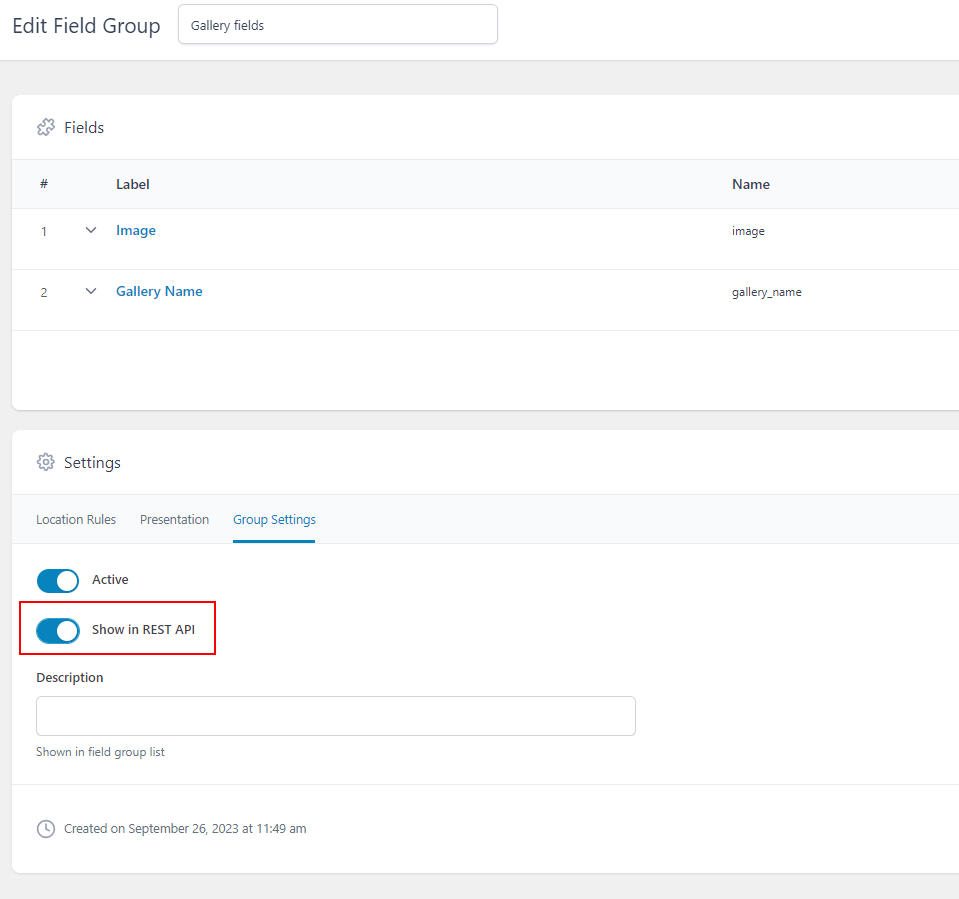
And set Show in REST API in your ACF Field Group:
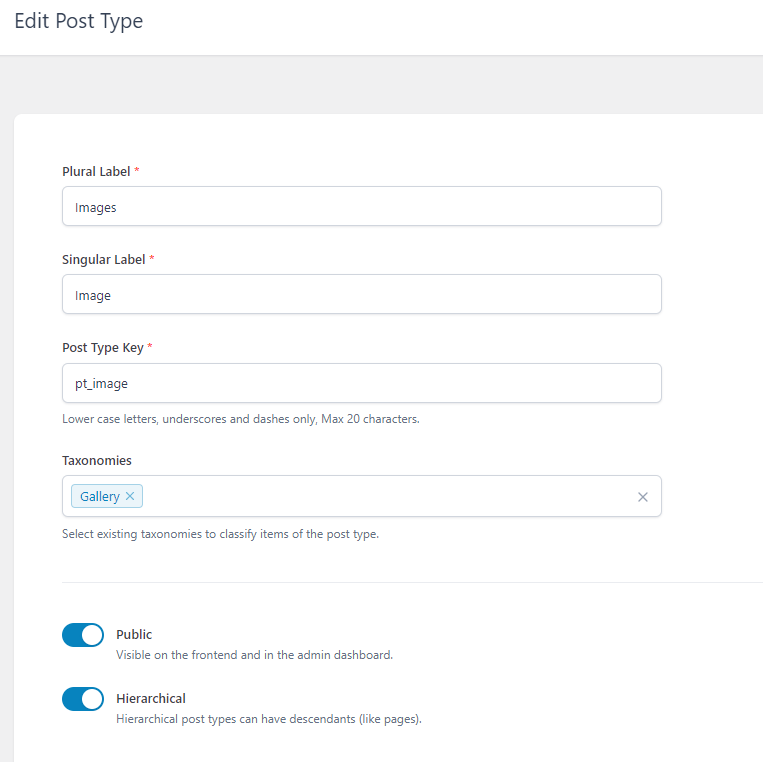
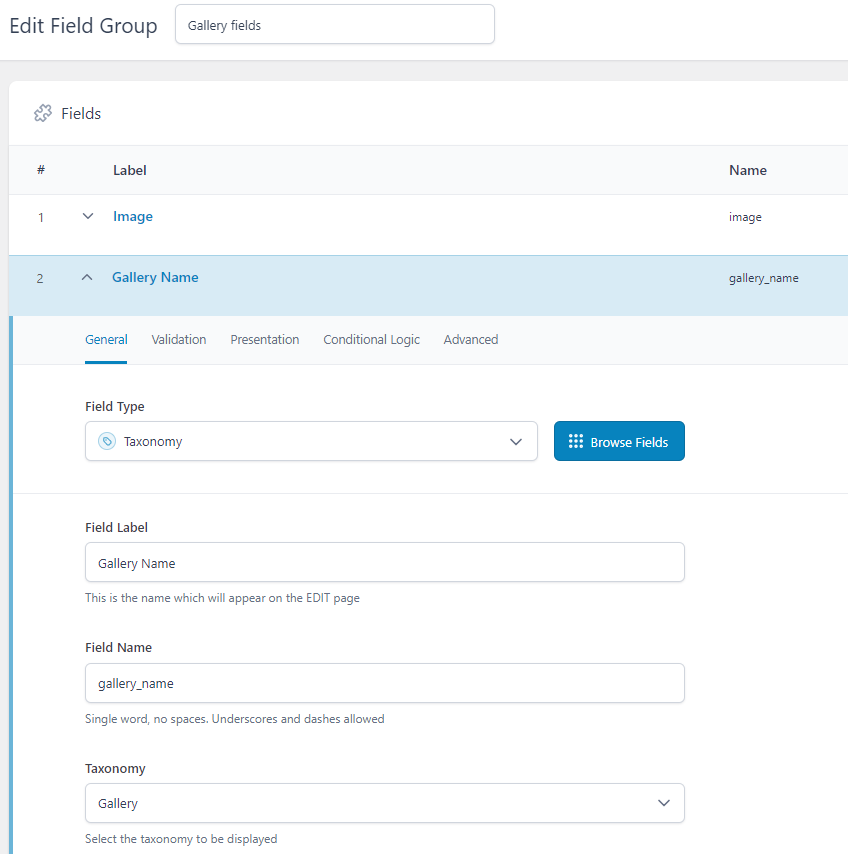
Create your CPT and your Taxonomy:
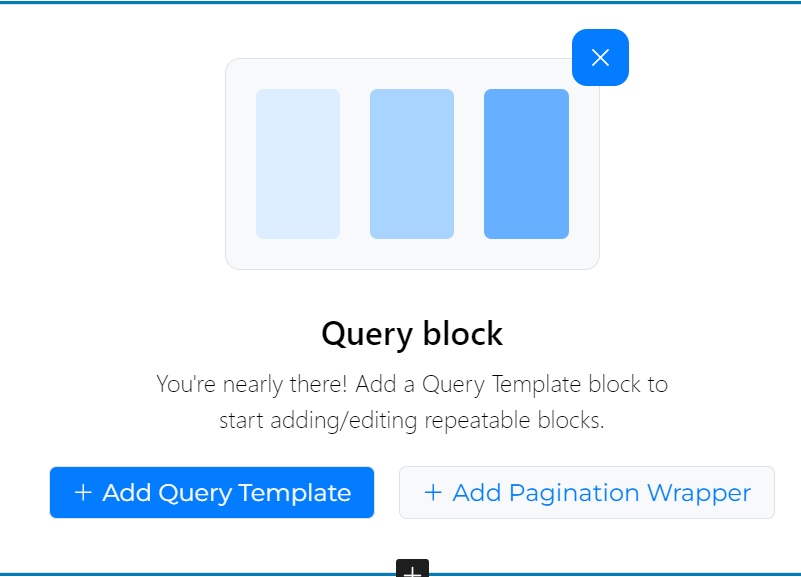
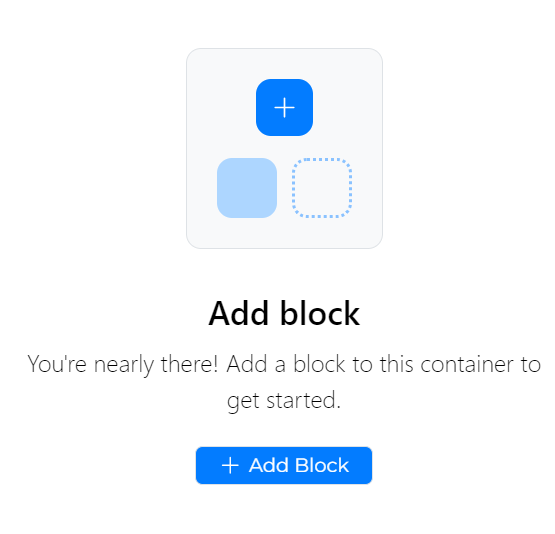
Start with a query block:
Add a block, in my case first a Div and in this div a Cwicly Image:
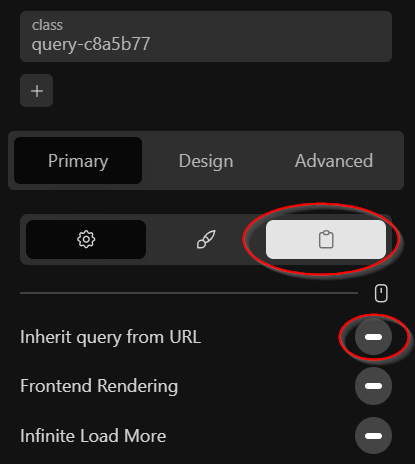
Disable Inherit from URL and open the query Editor
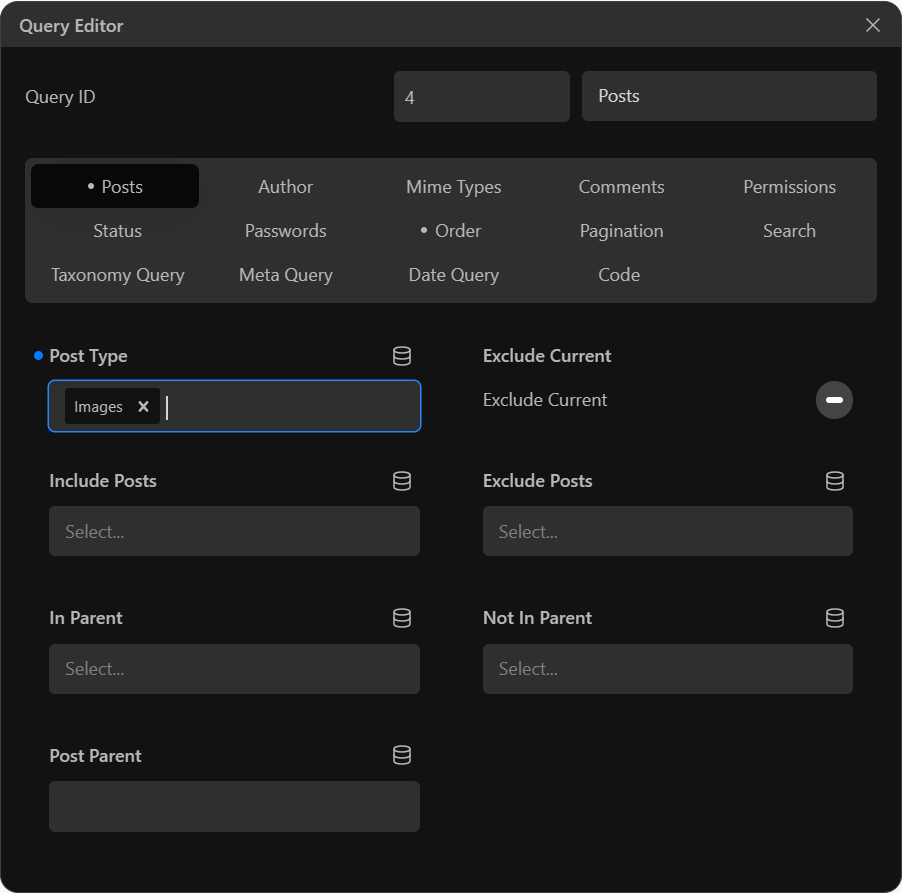
Set the post Type to your custom Post Type. In my case Images:
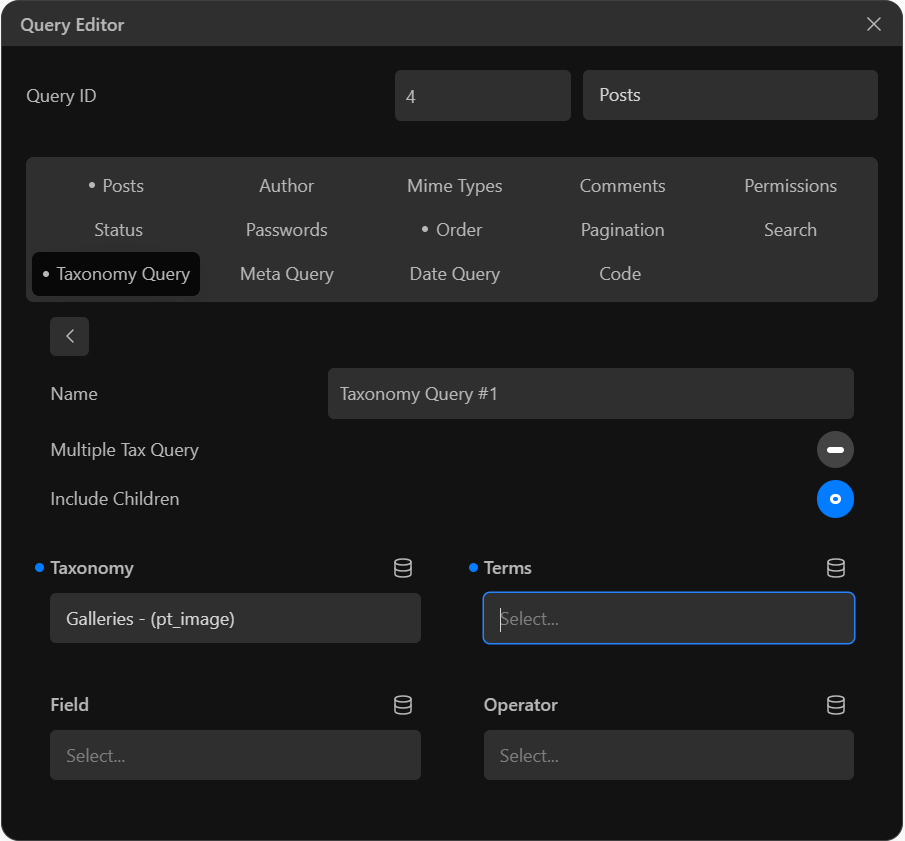
Add a Taxonomy Query:
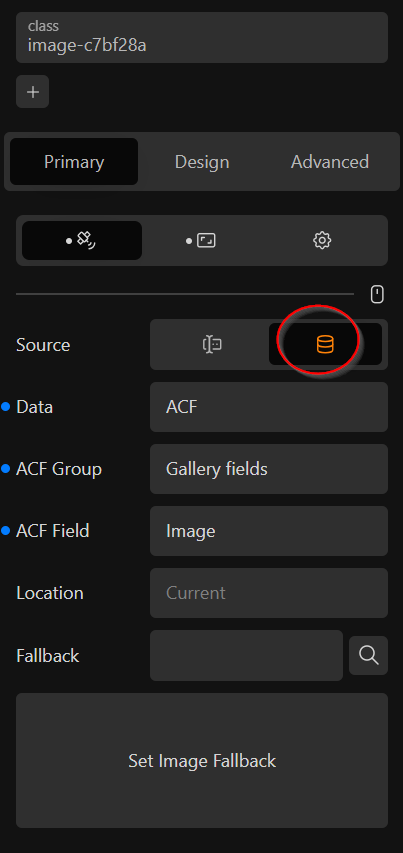
Click on the image and add Dynamic content:
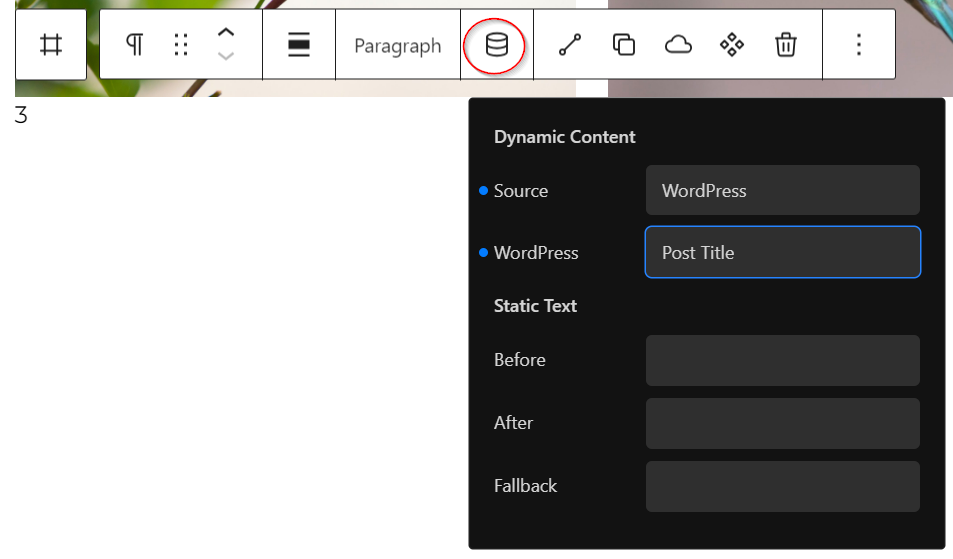
Add a paragraph to the div to show the post title (nr. 3 in this case):
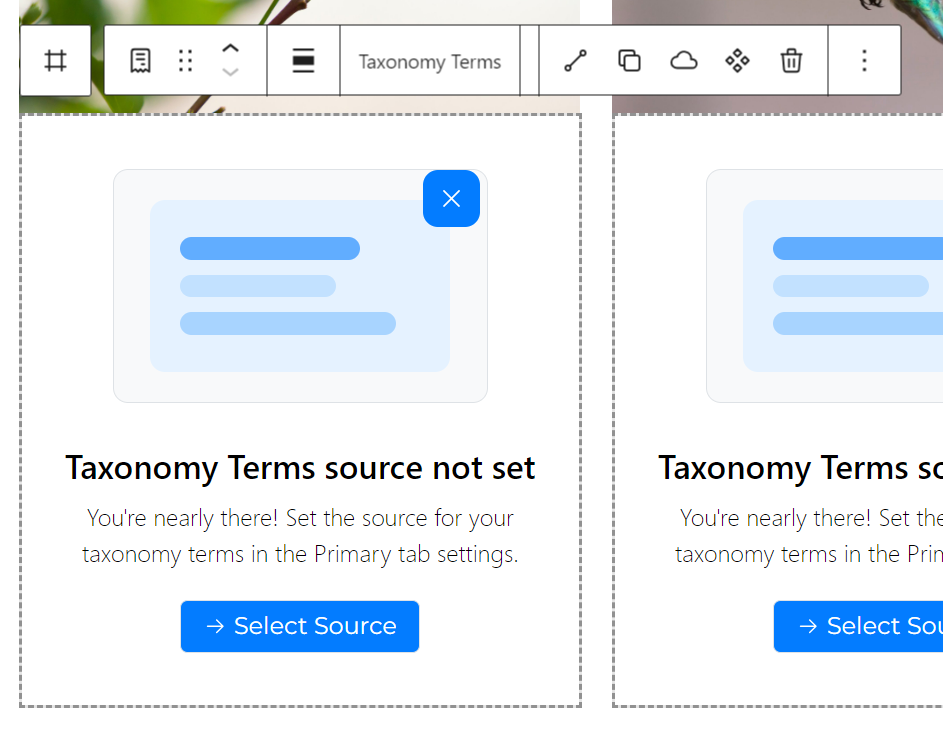
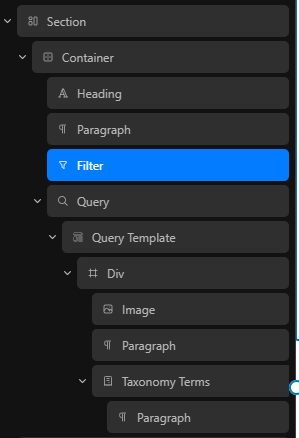
Add Taxonomy Terms block to the same div to show the Post Category:
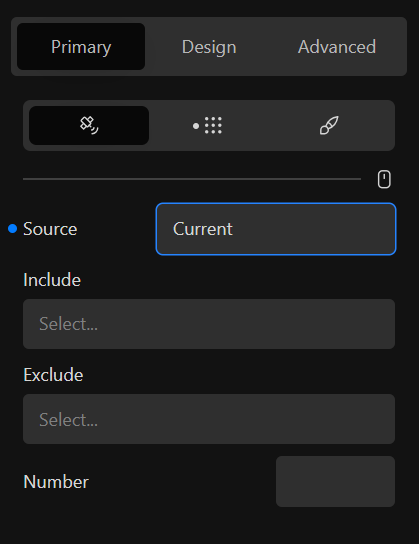
And select the source:
Add a paragraph in the Taxonomy Terms and add Dynamic Content to show the post category:
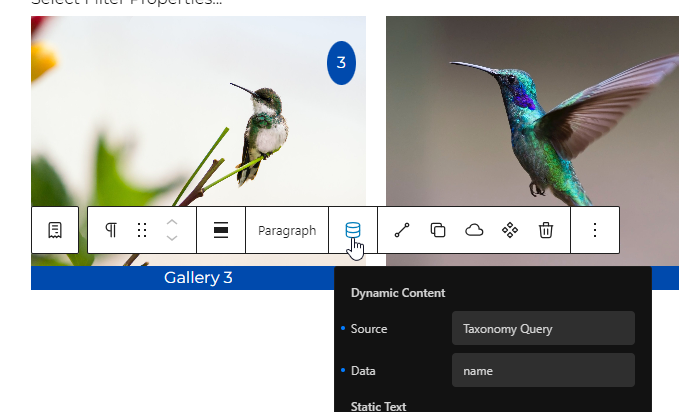
Now you have the name of the post category at the bottom of your image.
Now let’s create a filter
Add a filter element ( I want it above the images):
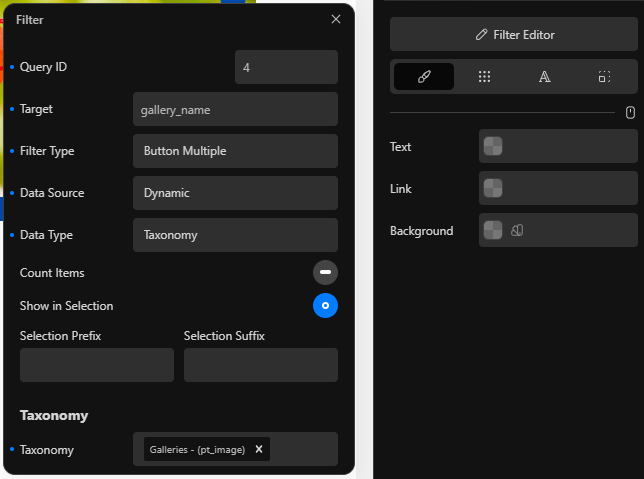
Set the parameters in the filter editor: (note fill in the correct QUeryId (you can find it in the Query Editor)
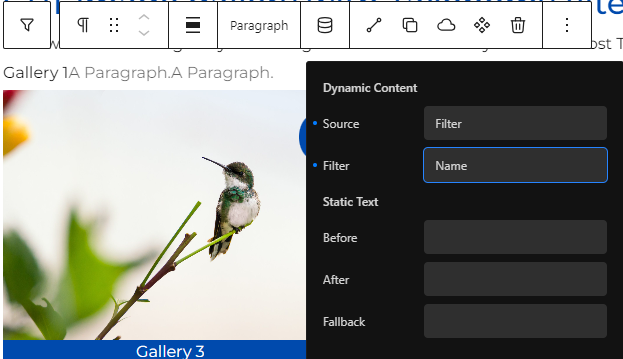
Add a paragraph in the filter and set it to dynamic content:
In your query Editor set the correct params in the Taxonomy Query Tab:
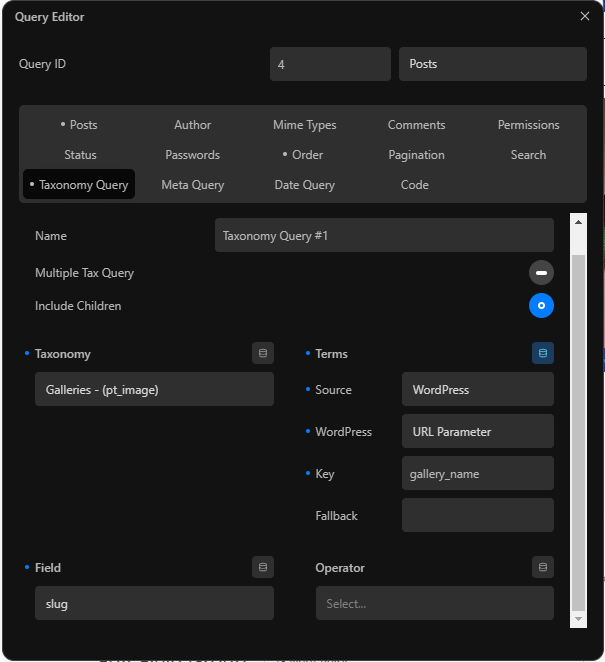
Now style the paragraph (buttons):

Now we can add some relative styles to the buttons to shof it it is selected or not.
So for selected add relative styling to the filter element:
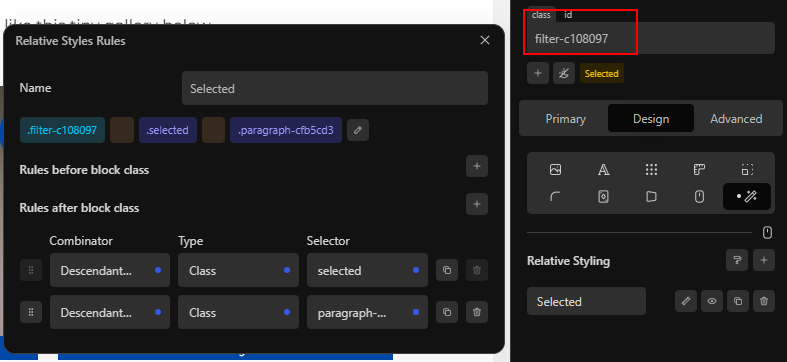
I found this a complex one.
So hope this tutorial works for you.
Good luck!
Design by Lijn-B
Made with Cwicly
Leave a Reply
You must be logged in to post a comment.